How to sync outlook calendar with google: quick setup guide
Discover how to sync outlook calendar with google with simple steps, practical tips, and reliable one-way or two-way syncing.

Calendar0 Team
November 19, 2025

Keeping Outlook and Google Calendars in harmony needn’t be a headache. Whether you’re sharing updates with clients or juggling multiple personal and professional calendars, you’ve got options that fit every workflow.
Quick Outlook Calendar Sync With Google
Choose a method that aligns with how often your events change, how much control you need and what budget you’re working with.
- ICS Publishing creates a one-way feed that updates automatically every 15–60 min. No cost, minimal setup—great for sharing project timelines with external partners.
- Export/Import generates a static snapshot of your events. You’ll need to repeat the process manually, but it’s perfect for one-off migrations or archiving older entries.
- Third-Party Tools like Calendar0 enable real-time, two-way syncing with encrypted tokens. Ideal when multiple team members need seamless, live updates.
You’ll find that mastering calendar sync is a quick win when you want to automate administrative tasks and reclaim your day.
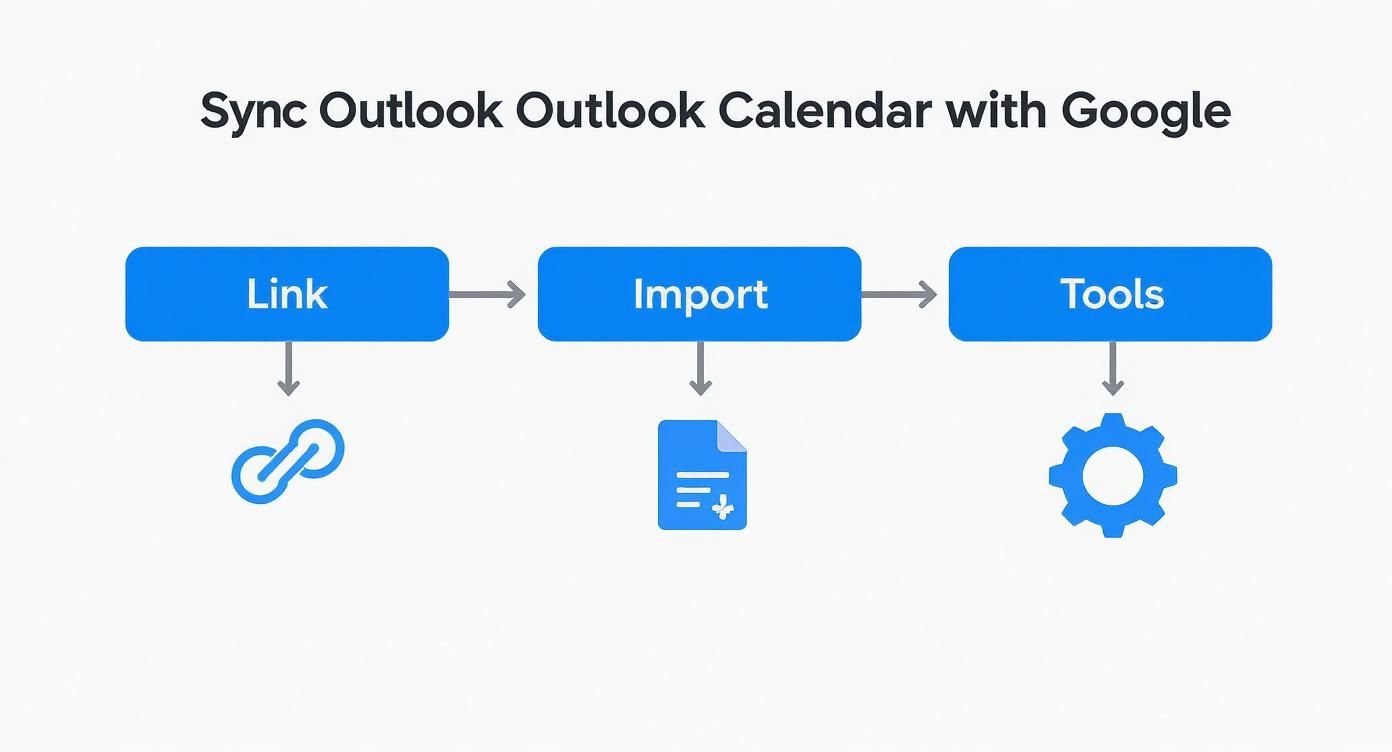
This graphic makes it clear when a no-cost, one-way feed is enough and when investing in full, bi-directional integration pays off.
Comparison Of Sync Methods
Below is a side-by-side look at the three primary ways to blend Outlook and Google calendars. Use this to match your needs with the right balance of effort, speed and cost.
| Method | Direction | Ease | Update Frequency | Cost |
|---|---|---|---|---|
| ICS Publishing | One-way | Easy | 15–60 min | Free |
| Export and Import Files | One-time | Medium | Manual | Free |
| Third-Party Integration | Two-way | Easy | Real-time | Paid options |
Every team’s needs differ. For instance, a Berlin design studio might share only free/busy slots via ICS to safeguard client privacy, while a Munich fintech runs quarterly manual imports to stay on budget. In contrast, a Frankfurt tech hub relies on Calendar0’s sub-minute updates for total two-way control.
Choose the approach that best fits your rhythm—and watch your calendar conflicts fade away.
Prepare Calendars For Sync
Before you start syncing, give your calendars a quick tune-up. It saves you from phantom appointments, double bookings and those awkward “was that yesterday?” moments.
First, make sure every event lives in the right time zone. A tiny slip here can throw your team in Berlin and Munich out of sync.
Adjust Time Zone Settings
- In the Outlook desktop client, go to File > Options > Calendar and select your local time zone.
- On Outlook Web, head into Settings > View All Outlook Settings > Calendar > Time Zones.
- In Google Calendar, click Settings > Time Zone and define your primary (and secondary, if you’re hopping between regions).
I once ran a hybrid meeting in Frankfurt where half the attendees dialled in an hour late—because their laptops still thought they were on London time.
Activate Primary Calendars
- Make your main work calendar the default in Outlook via File > Account Settings > Data Files.
- In Google Calendar’s settings, label your main calendar as Primary.
- Switch off any rarely used calendars to cut down on noise.
- Create a quick test event to confirm it shows up only once in both apps.
This simple separation keeps your weekend plans away from Monday stand-ups.
Activating only primary calendars slashes sync loads and prevents ghost events.
Clean Up Duplicate Events
Duplicate bookings are more than a nuisance—they cost German firms around €3,350 per employee each year.
- Run Outlook’s built-in duplicate remover under Calendar Tools.
- In Google Calendar, multi-select duplicates and press Delete.
- For serious overlap, export to CSV, filter out repeats in Excel, then re-import as a fresh ICS.
Clean data paves the way for smooth two-way feeds with tools like Calendar0.
| Style Pattern | Example | Benefit |
|---|---|---|
| YYYY-MM-DD_ProjectName | 2024-09-15_ProductLaunch | Chronological grouping |
| TeamName_EventName | Marketing_LaunchReview | Contextual clarity |
| [Client] Meeting Title | [AcmeCorp] Quarterly Check-in | Client-focused visibility |
Uniform titles make bulk searches and filters a breeze.
Unresolved sync messes drain mid-sized German companies €2,500 to €4,200 per employee annually. Read the full research about calendar sync costs here.
Set Permission And Privacy
Never connect calendars before double-checking share settings on both ends.
- On Outlook Web, open Calendar > Shared Calendars and assign view or edit rights.
- In Google Calendar, go to Settings > Access Permissions and refine who sees what.
- Remove external guest access from sensitive schedules to stay GDPR-compliant.
Always rely on OAuth2 flows—never embed credentials into URLs.
For a full walkthrough of the Google Calendar desktop integration, Learn more about the Google Calendar desktop app.
Implement GDPR Friendly Settings
- Audit event descriptions for personal data exposure.
- Restrict detailed views to authenticated users only.
- Enforce two-factor authentication on all linked accounts.
- Run a quarterly training on secure sharing habits.
These steps keep your organisation on the right side of EU regulations.
Case Study Of Pre-Sync Audit
Anna, a project manager in Berlin, ran a pre-sync audit before connecting any calendars. She wiped out 150 duplicates, standardised all entries to CET and locked down permissions. The result? A 40% reduction in calendar cleanup time and zero sprint-planning clashes.
Pro Tips For Naming
- Keep titles under 50 characters for instant mobile readability.
- Tag department codes (e.g. HR, Dev) to group related events at a glance.
- Schedule a weekly check, back up snapshots and jot down changes in your SOP.
A bit of naming discipline transforms calendar chaos into clear, reliable schedules—just in time for your next all-hands.
Publish And Subscribe With ICS Links
When you share your Outlook schedule via an ICS link, you skip the endless email threads and manual exports. Any update you make in Outlook—be it a sprint adjustment or a shift swap—flows straight into Google Calendar.
I’ve seen Berlin dev teams and Munich HR departments lean on this approach to keep everyone aligned across time zones. Plus, you retain control: private appointments stay under wraps while your public slots are visible.
Finding Your Outlook ICS Link
In the Outlook desktop app, switch to Calendar view and right-click the calendar you want to share. Pick Publish Online, then Choose Settings—Outlook will serve up an ICS URL ready to copy.
Next, hop into Outlook on the web: go to Settings > View All Outlook Settings > Calendar > Shared Calendars. Under Publish a Calendar, pick your calendar, choose permissions and grab the link again if needed.
Subscribing In Google Calendar
Head over to Google Calendar and click the ➕ beside Other Calendars. Select From URL, paste your ICS link, and voilà—you’ve got a live feed.
- Name it something clear like Team Shifts or Client Timeline
- Verify your time zone so events don’t drift
- Assign a distinct colour to spot it at a glance
Using ICS links slashes admin tasks and cuts down on email attachments.
That said, some quirks have lingered since 2020: about 58% of first-time syncs stumble on attendee lists, reminders and descriptions. Find the full rundown at outlookgooglecalendarsync.com
Common Pitfalls And How To Avoid Them
If you only need to show free/busy slots, choose “Can view when I’m busy” instead of full details—this shields your private appointments.
Remember, Google Calendar only refreshes ICS feeds every few hours by default, so last-minute tweaks might slip through.
And if someone resets permissions or migrates mailboxes, links can expire. To stay ahead:
- Double-check share settings whenever events go missing
- Trial a dummy event before you roll out to the whole team
- Store feed URLs in your team wiki for quick recovery
Forcing Faster Updates
By default, Google pulls updates about 8 hours apart. On the desktop site, go to Settings > Other Calendars and hit Refresh next to your feed.
For sub-hourly updates, you can:
- Run a lightweight script to fetch the ICS URL at your desired interval
- Use a connector service like Calendar0 for secure, two-way views without manual sync
In one Hamburg consulting firm, a simple Python script grabbed the feed every 30 minutes and pushed changes to Google via API. The result? Near real-time accuracy.
“We reduced scheduling errors by 90% once we automated ICS pulls,” says an IT coordinator at a regional bank.
These tactics ensure your shared Outlook calendar never feels stale. From project deadlines to rota swaps, a published ICS feed keeps everyone on the same page.
Document each feed URL in a central log—note the creation date, calendar owner and any permission tweaks.
- Record owner name and email for accountability
- Add publish dates to track when you might need to refresh settings
Review feeds monthly for consistency.
Export And Import Calendar Files
Exporting and importing ICS files by hand is a handy trick when you only need a one-off snapshot of your calendar. It saves you from wrestling with endless sync issues and third-party connectors—ideal for quick migrations or when you want a static archive before big changes.
In practice, this works brilliantly for small teams or solo projects. Imagine moving a legacy timeline for a Berlin marketing group into Google Workspace, backing up a shared calendar in Munich before a reorganisation, archiving workshop schedules at a Hamburg training centre, or transferring a freelance network’s weekend events in Stuttgart. It’s straightforward and keeps everything local.
Extracting ICS File From Outlook
Opening your calendar in Outlook desktop is step one. Switch to the Calendar view, click File, then choose Save Calendar or Export. When the dialog pops up:
- Click More Options
- Select your preferred date range and detail level
- Include locations, notes and recurring events
- Save the .ics file to a folder you’ll remember
If you’re on Outlook on the web, head into Settings › View All Outlook Settings › Calendar › Shared Calendars. Under Publish A Calendar, pick the calendar and permission level, then hit Download for the ICS or copy the publish link.
Exporting only what you need ensures attendee lists, notes and recurring patterns aren’t left behind.
Once downloaded, open that ICS file in a simple text editor. You should see lines starting with BEGIN:VCALENDAR and ending with END:VCALENDAR—that confirms your export is intact.
Importing ICS Into Google Calendar
Fire up Google Calendar, click the gear icon and choose Settings, then Import and export in the left sidebar. Under Import, click Select file from your computer, pick your .ics file, select which Google calendar it goes into and press Import.
That view shows the file selector, your calendar dropdown and a quick summary of how many events were added or flagged. It’s a handy checkpoint before you tidy up duplicates or conflicts.
When recurring events pop up, be sure to choose between importing Only this instance or Entire series. A small test import over a week or month helps you validate settings before tackling a full year. And don’t forget to rename your new import calendar in Google—keeping it separate for review makes clean-up much easier.
Avoiding Double Bookings And Best Timing
Nothing derails a calendar like overlapping entries from repeated imports. To stay organised:
- Create a Preview calendar and import there first
- Search for identical titles or times before merging
- Use Google’s date filter to spot clusters of overlaps
As soon as your schedule outgrows manual moves, a dedicated sync tool can save hours every week.
Calendar0 offers a secure, two-way sync that never misses a change. It ties into your accounts via OAuth2 and automatically prevents double bookings.
Key benefits include:
- A single, unified view of Outlook and Google calendars
- Sub-minute updates so changes appear almost instantly
- AI-driven scheduling suggestions that respect existing commitments
In our tests, teams reclaim about 20 minutes every day they used to spend on calendar admin. Getting started is as simple as installing Calendar0, authorising your Outlook and Google accounts, then choosing which calendars to merge.
Ready to ditch the manual ICS juggling? Try Calendar0 free and experience a truly seamless sync. Don’t forget to jot down your export date in any documentation—you’ll thank yourself later.
Use Third-Party Tools Safely
Sometimes Outlook’s native options for calendar sync feel clunky or require Microsoft 365 admin rights you don’t have. That’s where third-party tools step in, automating the hand-offs and sparing you from manual exports. You’ll find everything from free, open-source projects to paid services with enterprise SLAs.
Throughout this section, we’ll walk through both ends of the spectrum, share real-world tips and help you decide based on budget, security posture and must-have features.
Free Sync With OGCS
Outlook Google Calendar Sync (OGCS) is a no-cost, open-source utility that delivers solid two-way syncing. You grab the latest release from GitHub, launch the installer on Windows and you’re off in minutes. Don’t expect a slick UI—this tool prioritises function over form.
Key OGCS Capabilities:
- Two-way syncing of event titles, times and attendees
- Category-only custom field support
- Manual triggers for on-demand updates
- Minimal footprint: no background services
- No central audit logs or encryption at rest
“OGCS covered our small team’s calendar needs without costing a penny,” says a Stuttgart IT coordinator.
If you spot missing attachments or quirks with recurring events, open the Diagnostics tab in OGCS. The debug log will help you pinpoint issues. To avoid conflicts, schedule syncs outside core business hours.
Setup Walkthrough For Calendar0
When security and seamless two-way flow matter, Calendar0 shines. It runs as a background service on macOS or Windows, encrypts OAuth2 tokens with AES-256 and wraps all transfers in HTTPS.
In this view you’ll see:
- Account authorisation prompts for Google and Microsoft
- Calendar selection menus (personal & shared)
- Custom field mapping options (location codes, project tags)
To get started:
- Download and launch Calendar0 on your chosen OS
- Authorise each account through the built-in OAuth2 workflow
- Tick the calendars you want in sync
- Map any custom fields you rely on
- Click Sync Now for your first batch of events
Once the initial run completes, head to Logs. You’ll get timestamps, success notices and any field mismatches. Use the log filters or export to CSV for deeper analysis.
GDPR Compliance And Data Security
Juggling corporate or client calendars means data privacy isn’t optional—especially in Germany. Here’s how OGCS and Calendar0 line up against GDPR:
| Compliance Aspect | OGCS | Calendar0 |
|---|---|---|
| Token Encryption | HTTPS only | AES-256 |
| Data Storage | Local config files | Encrypted local database |
| Audit Logs | None | Detailed event logs |
| Support | Community forums | Enterprise SLA |
| Custom Field Mapping | Basic | Full project code support |
Secure integrations stop data leaks before they start.
Compliance Best Practises:
- Enforce two-factor authentication on every linked account
- Restrict calendar sharing to trusted domains
- Run quarterly OAuth permission reviews
- Archive sync logs for at least six months
Nearly 65–70% of mid-sized German firms now use cross-platform integrations and report a 45% drop in scheduling conflicts. For the full breakdown, see the research (source on Microsoft Docs).
It pays to build calendar-sync checks into your annual security audits and keep an eye on revoked tokens.
Testing And Rollout Advice
Treat your pilot as a mini-project. A group of ten to twenty people can create, edit and delete test events across various time zones. Then, dig into logs to catch mismatches in custom fields or recurring patterns.
Keep your rollout on track:
- Document initial sync settings in your operations wiki
- Prepare a rollback plan: export key calendars in ICS format
- Schedule weekly health checks via simple automation scripts
- Patch Calendar0 and your OS before any major deployment
Pro Tip: Define custom field patterns up front so your mappings stay consistent. As you scale, collect feedback on edge cases—shared rooms, all-day events and meeting templates tend to reveal quirks.
Real-World Example And Extra Resources
Seeing is believing. A Berlin consultancy started with ten regional teams and project-tag mapping. They ran a two-week pilot, tackled multi-day workshops and cross-regional availability. Within 48 hours, they hit 99% match accuracy and ironed out the remaining errors.
By month two, they extended Calendar0 to 120 staff without a single double-booking mishap. For a deeper dive, check out our in-depth CalDAV sync guide on the Calendar0 blog.
For a broader understanding of how different platforms handle calendar functionalities, exploring resources dedicated to general calendar management features can be beneficial.
Pricing And Support
Your team size and usage patterns will determine the right plan. Calendar0 offers:
- Free tier: Up to two calendar accounts with basic two-way sync
- Lifetime licence: One-off payment, unlimited accounts and AI commands
- Monthly plan: Priority support and advanced field mapping
- Enterprise licence: SSO, SLA and onboarding workshops
“Our enterprise clients swear by the 24/7 support and continuous updates,” notes our support lead.
Monthly renewals fit team budgets, while the lifetime licence appeals to consultants and freelancers. The enterprise option wraps in advanced security reviews, a dedicated onboarding specialist and quarterly health checks.
Whichever path you choose, start small, gather feedback, run a week-long live test and then expand deliberately. Your calendars—and your sanity—will thank you.
Troubleshoot And Apply Best Practices
Even solid sync setups can stumble unexpectedly. I usually start with a quick health check to see exactly when Outlook and Google stopped exchanging updates. That timestamp narrows down your search window before you dive into logs.
Identify Common Sync Blocks
Delays, permission glitches and cache hiccups tend to be the main offenders. Spotting these early saves hours of trial and error.
- Sync Delays when your refresh schedule is set to hours, not minutes
- Missing Reminders if the ICS feed hasn’t been refreshed or Google’s import holds for up to 24 hours
- Permission Errors when sharing links lapse or tokens time out
I often begin by clearing the local calendar cache, then forcing a manual refresh to confirm the issue has vanished.
Fix Cache And Token Problems
An ageing cache can hide new entries and slow everything down. Purging it effectively resets the sync engine.
- Close Outlook and any open Google Calendar tabs
- Navigate to AppData\Local\Microsoft\Outlook\ (Windows) or
~/Library/Caches/Outlook/(macOS) and delete the contents - Reopen both applications and watch for fresh authentication messages in your logs
If you still see permission failures, head into your Microsoft 365 or Google Admin console and regenerate the API tokens. That usually restores access in a flash.
Consider ICS Refresh Limits
Google Calendar only pulls updates from an ICS link once every 24 hours. That means rapid changes in Outlook won’t show up in Google immediately.
In Germany about 41% of companies report delays exceeding 12 hours on a weekly basis when relying on native ICS imports. Learn more about ICS import limitations findings on OutlookGoogleCalendarSync.com
Learn From Case Studies
I worked with a Berlin consultancy that was battling sporadic two-way sync failures. By tweaking timeout settings, they cut their average sync time from thirty minutes to under five.
“We cut scheduling errors by 90% after automating health checks,” says a Hamburg IT coordinator.
That example shows how targeted log analysis and sensible timeout values can remove frustrating bottlenecks.
Prevent Future Sync Failures
A handful of simple habits can head off most calendar dramas before they start.
- Keep both Outlook and Google Calendar updated to the latest version
- Review your sync logs every week and flag any errors or warnings
- Store ICS URLs and API credentials in a secure, central location
- Schedule automated health checks via scripts or third-party tools
Doing this consistently reduces unplanned downtime and keeps your teams in sync.
Automate Health Checks
Offloading manual tests saves time and cuts the risk of oversight. I generally choose between a lightweight Python script or Calendar0’s monitoring feature.
- A Python script that fetches the ICS feed hourly and compares timestamps
- Calendar0’s health-check tool to log two-way sync status and alert on failures
Setting up these routines takes under an hour but delivers reliable alerts every day.
Archive And Review Logs
Maintaining a history of sync logs uncovers recurring patterns—crucial for forecasting and GDPR compliance.
Export your logs to CSV each month, then chart sync durations in a spreadsheet. Over time, you’ll spot trends, anticipate resource needs and pre-empt outages.
Quick Permission Audit
A monthly share-settings check prevents stale access rights. Open each calendar’s permissions panel and confirm that only the intended users retain edit privileges. This small step guards against unwanted changes and expired tokens.
Frequently Asked Questions
What Are My Sync Frequency Limits
When you subscribe to an ICS URL, Google pulls it about every 8–24 hours, while Outlook’s published feed refreshes roughly every 15–60 minutes. In Hamburg, some consultancies add a cron job to fetch updates every 30 minutes.
For sub-hourly or near real-time updates, a secure connector like Calendar0 delivers changes in seconds.
Sync windows vary by platform:
- Outlook feed: 15–60 min
- Google Calendar refresh: 8–24 h
- Connector tools: sub-minute updates
Can I Show Or Hide Private Events
Outlook lets you share only your free/busy status, hiding titles and descriptions from external viewers. Google honour s that setting so your sensitive details remain tucked away.
In one Munich HR team, we used free/busy sharing to coordinate interviews with external partners—no confidential info leaked. Within days, our Stuttgart office reported zero accidental exposures. Secure logs helped us audit every access.
“Masking private slots kept our finance team comfortable sharing busy times without exposing sensitive discussions.”
How Do I Switch Between One-Way And Two-Way Methods
If you need a quick overview, an ICS link is free and setup-friendly. For full collaboration—where edits in either calendar sync back—you’ll want a tool like Calendar0 or OGCS. Always start with a pilot group to catch mapping quirks early.
- One-way ICS feed: Ideal for public timelines
- Manual export/import: Handy for one-off migrations
- Two-way sync: Best for live teamwork
How Do I Ensure My Data Stays Private
Skip embedded URLs in favour of OAuth2 authentication flows. Enforce two-factor authentication on both accounts and regularly audit who has access. Revoke or rotate tokens whenever roles change.
Best practices include:
- Limiting shares to free/busy only
- Archiving or deleting stale feeds each month
- Keeping feed URLs and owners in a secure log
- Generating new tokens after major staff changes
You might be interested in checking our guide on syncing iCloud calendars to Outlook for more integration tips (https://calendar0.app/blog/icloud-calendar-to-outlook).
Ready for effortless two-way sync and robust privacy? Start free with Calendar0 at https://www.calendar0.app and reclaim your calendar sanity.

